
Import Data
In this tutorial, we will guide you through the process of importing data into AI Sublimation Software for personalized printing projects. This is a crucial step to ensure your designs are ready for variable data printing.
AI Sublimation Software Interface Overview
After installing AI Sublimation Software and selecting your CorelDRAW version, you'll see the main interface with four key sections for managing your variable data printing projects.
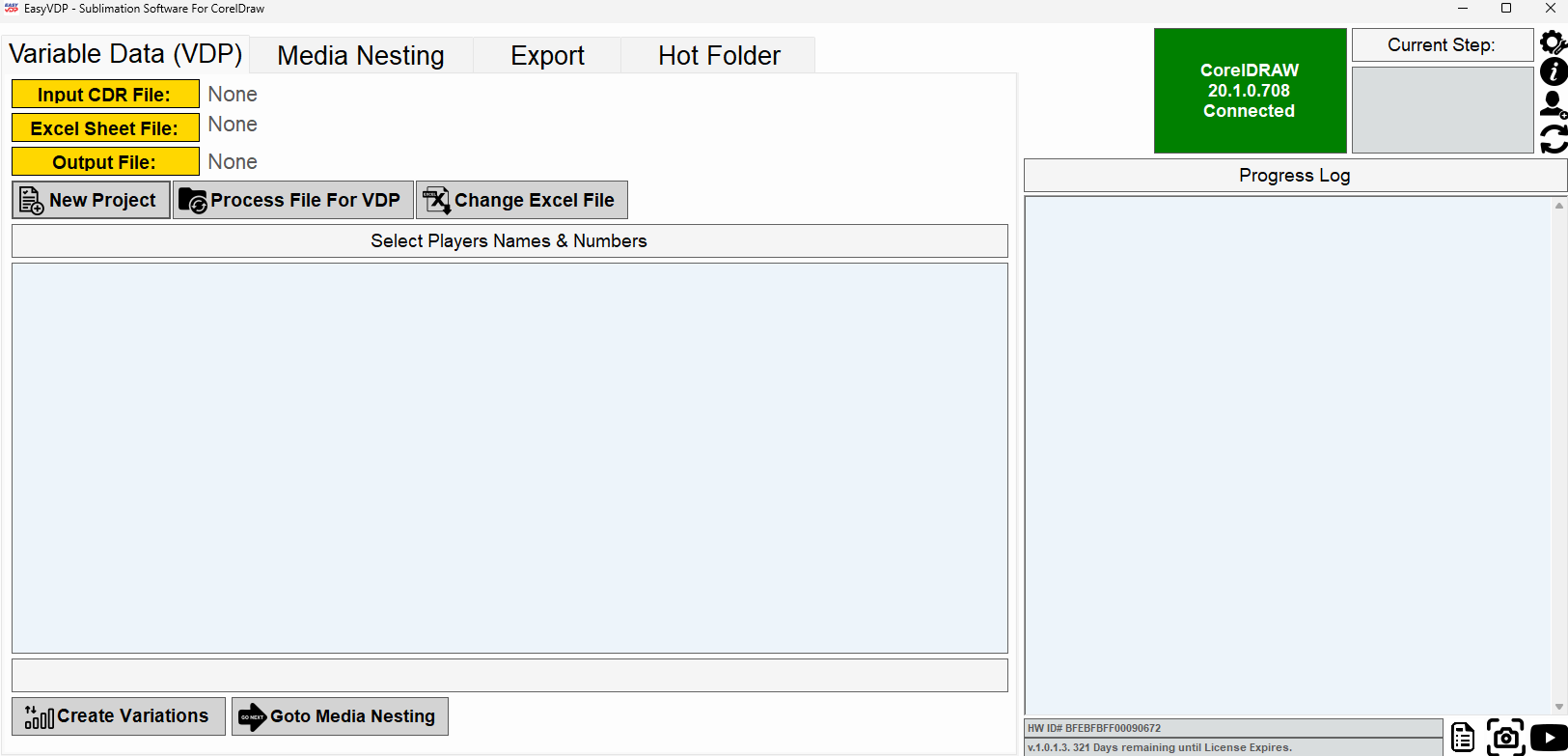
AI Sublimation Software main interface showing the four primary sections
Interface Components
📁 Variable Data (VDP)
- Input CDR File: Your CorelDRAW template file
- Excel Sheet File: Your player data spreadsheet
- Output File: Generated print-ready files
🎯 Additional Features
- Media Nesting: Optimize material usage
- Export: Export your completed projects
- Hot Folder: Automated processing
Starting a New Project
The project creation process begins by clicking the "New Project" button, which opens the project setup dialog where you'll configure your data sources and output settings.
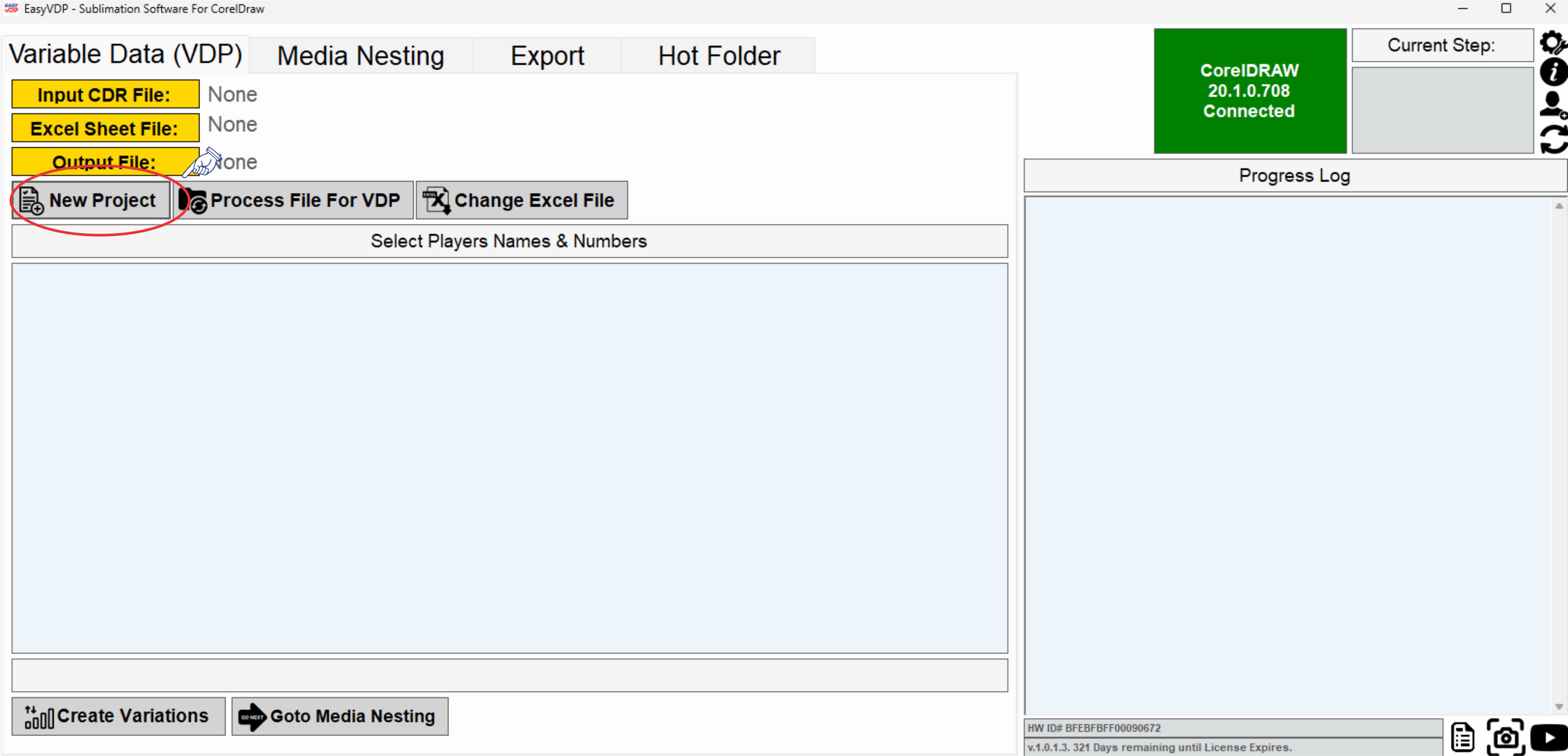
New Project dialog showing file selection and configuration options
New Project Setup Steps
Step 1: Select CDR File
Click "Select Path" next to "Input CDR File" to choose your CorelDRAW template
Step 2: Configure Excel Data
Set up your Excel file details including sheet and team selection
Project Configuration Options
📊 MS Excel File Details
- Input File: Browse and select your .xlsx file
- Select Sheet: Choose the specific worksheet with your data
- Select Team: Pick which team's data to process
🎯 Project Settings
- Order ID: Unique identifier for your project
- Order#: Sequential numbering for organization
- Output File Path: Destination for generated files
Select Corel Draw File
Choose your properly prepared CorelDRAW template file that contains the grouped design elements. The file should follow the 4-step grouping workflow as detailed in our CorelDRAW Integration guide.
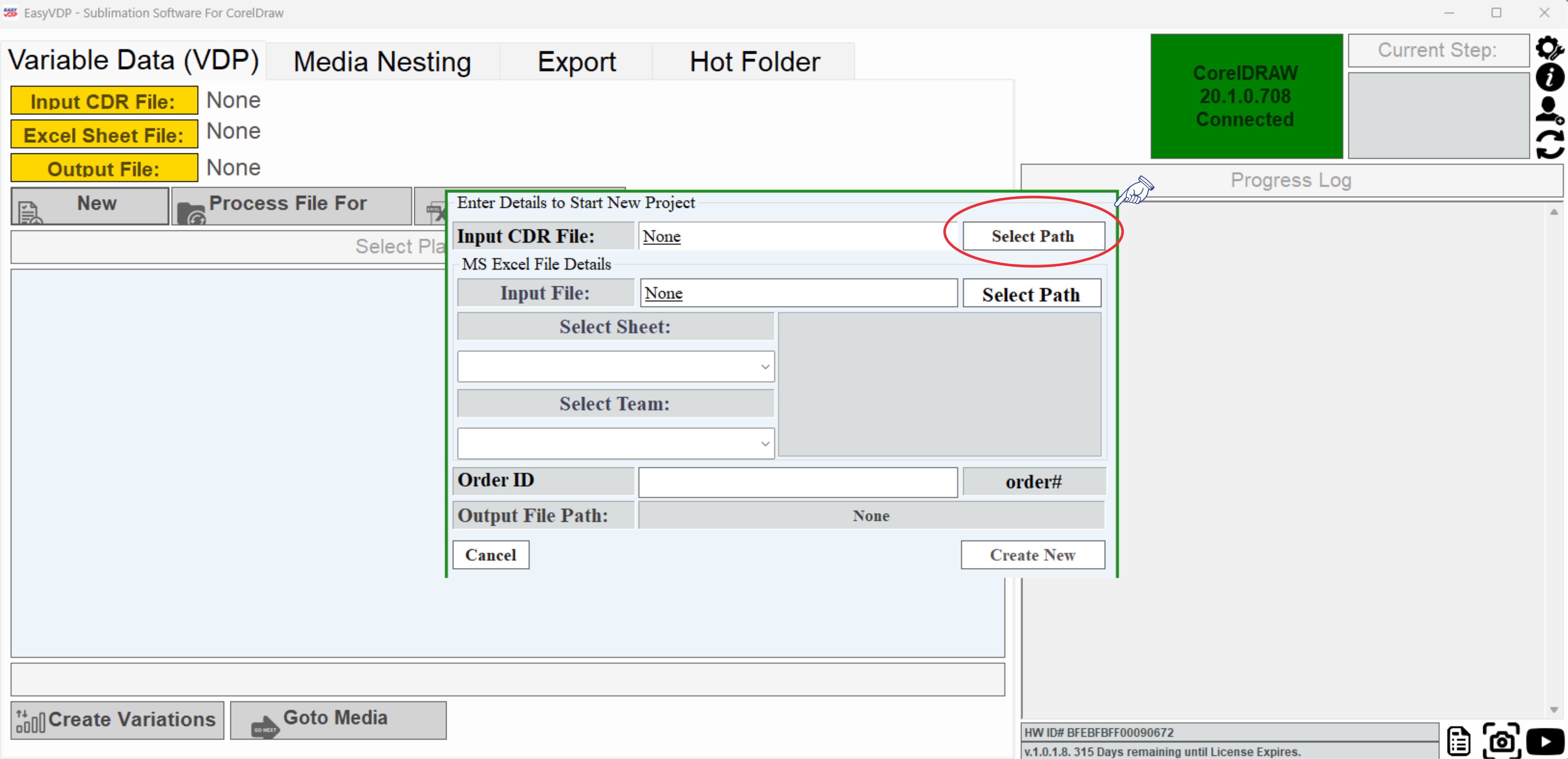
CorelDRAW file selection interface showing template file browser
Select Excel File
Import your Excel spreadsheet containing player names and jersey numbers. The Excel file must be structured with the correct column format as shown in our First Steps guide.
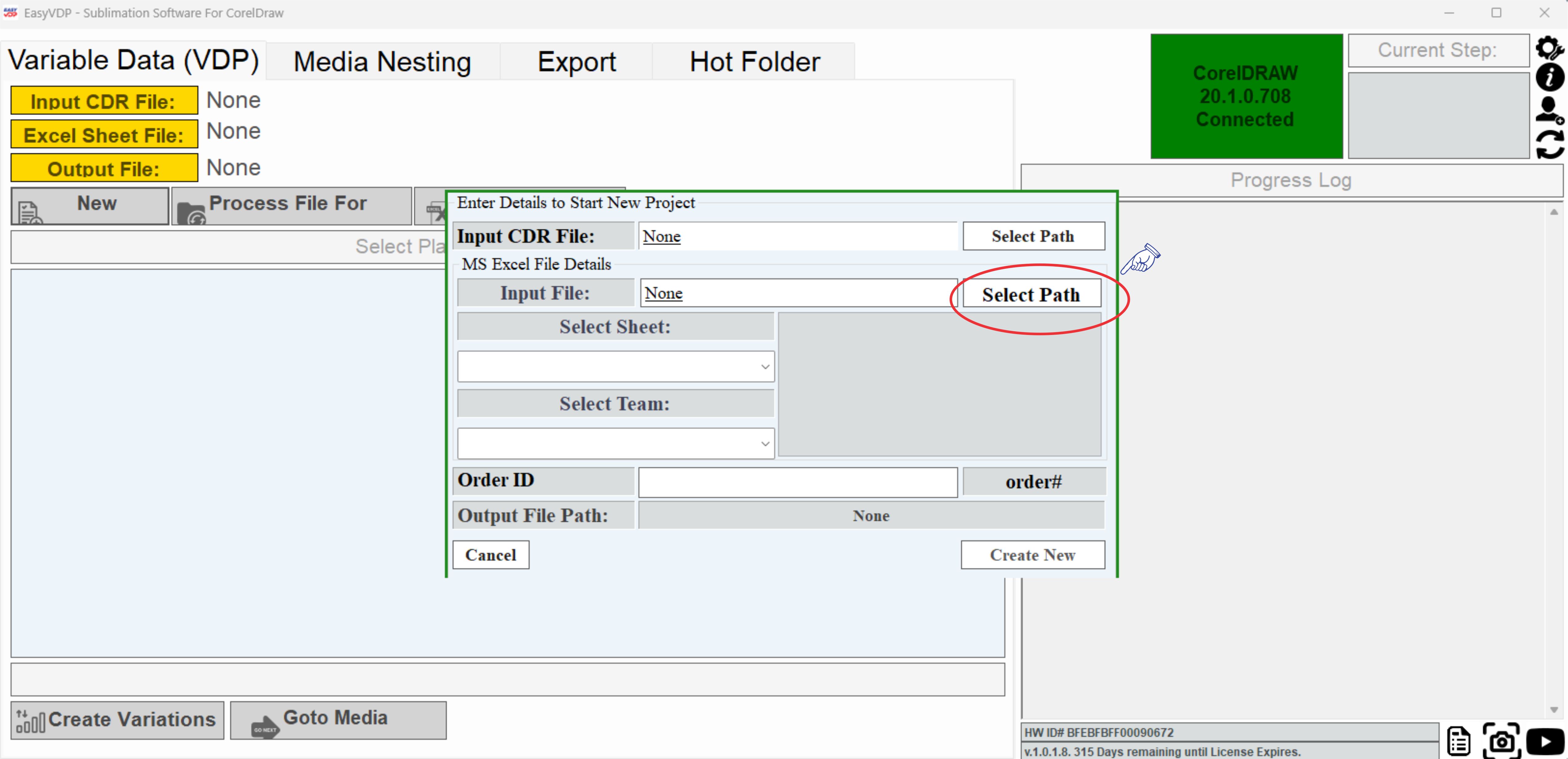
Excel file selection interface showing team and sheet options
Data Import Best Practices
✓ File Preparation
- Save and close files before importing
- Save Excel files as .xlsx format
- Ensure CorelDRAW files are saved in compatible version
- Use clear, consistent naming conventions
- Verify data completeness before import
🚫 Common Mistakes to Avoid
- Missing team headers in Excel
- Incorrect column naming (missing # for numbers)
- Ungrouped elements in CorelDRAW
- Empty cells in critical data columns